Guide

How to use Finimory

From signing in to collecting your photos, and from uploading an event to earning from it.

  1. 1Sign in with Google or emailEveryone
  2. 2Open an event galleryEveryone
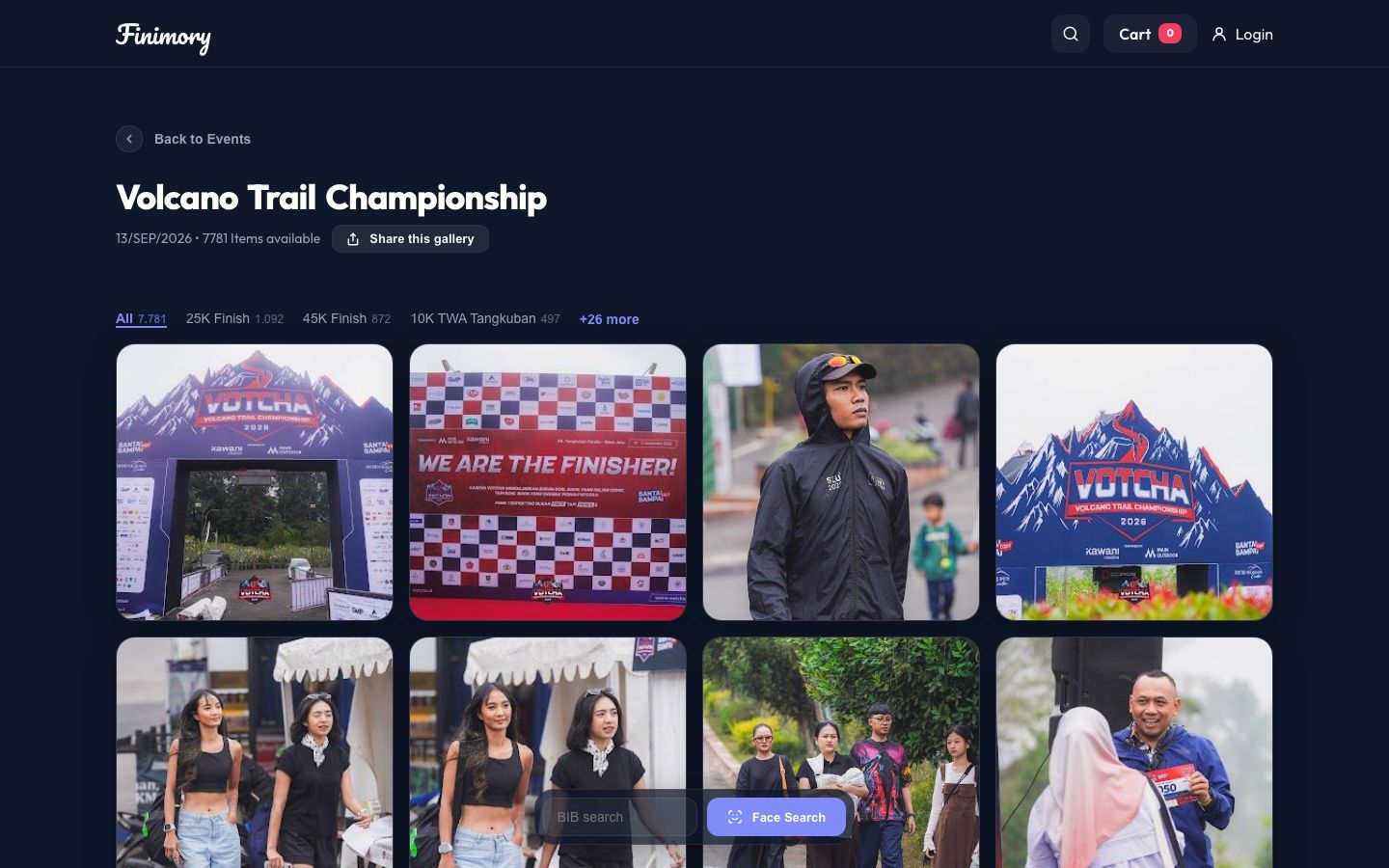
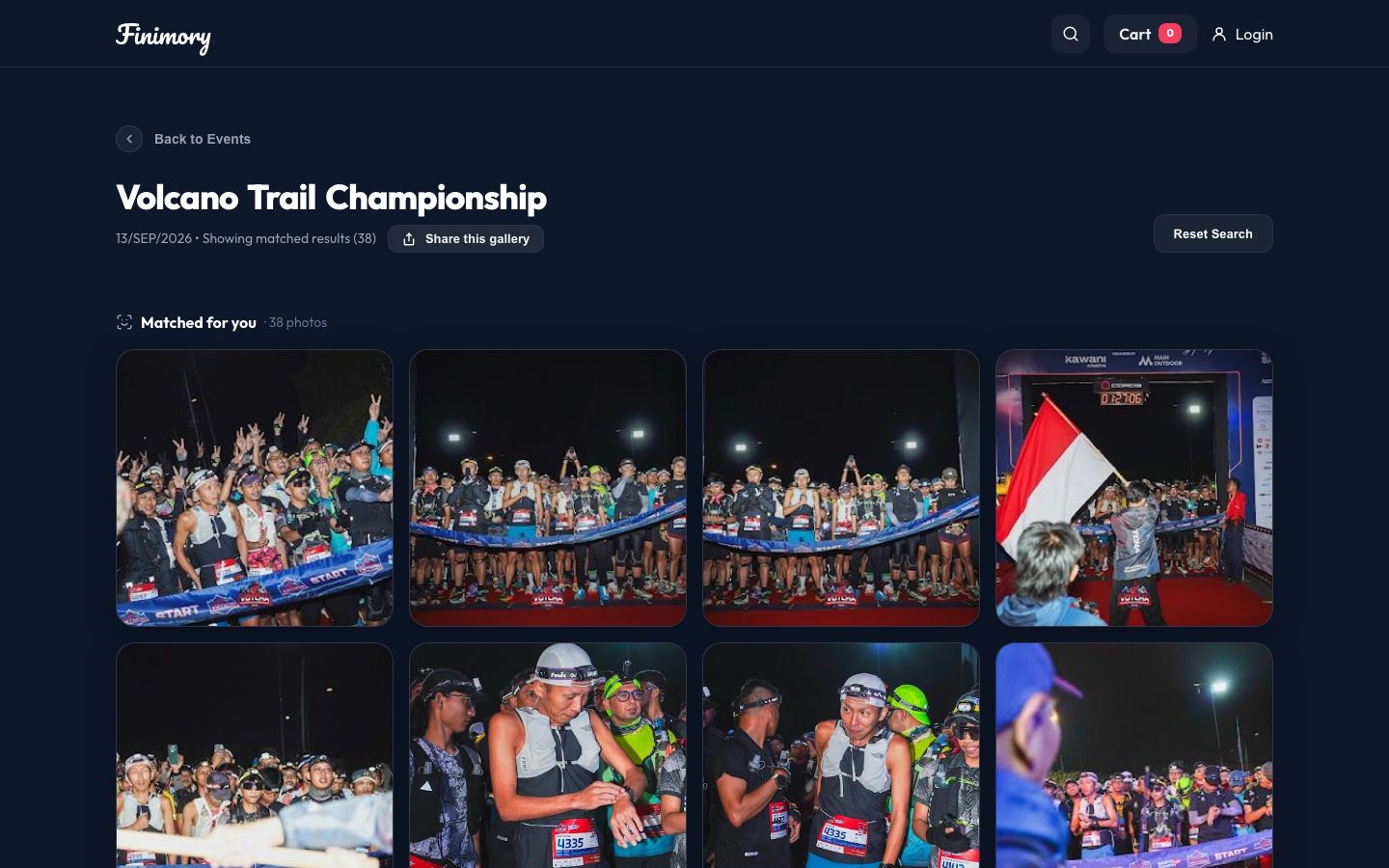
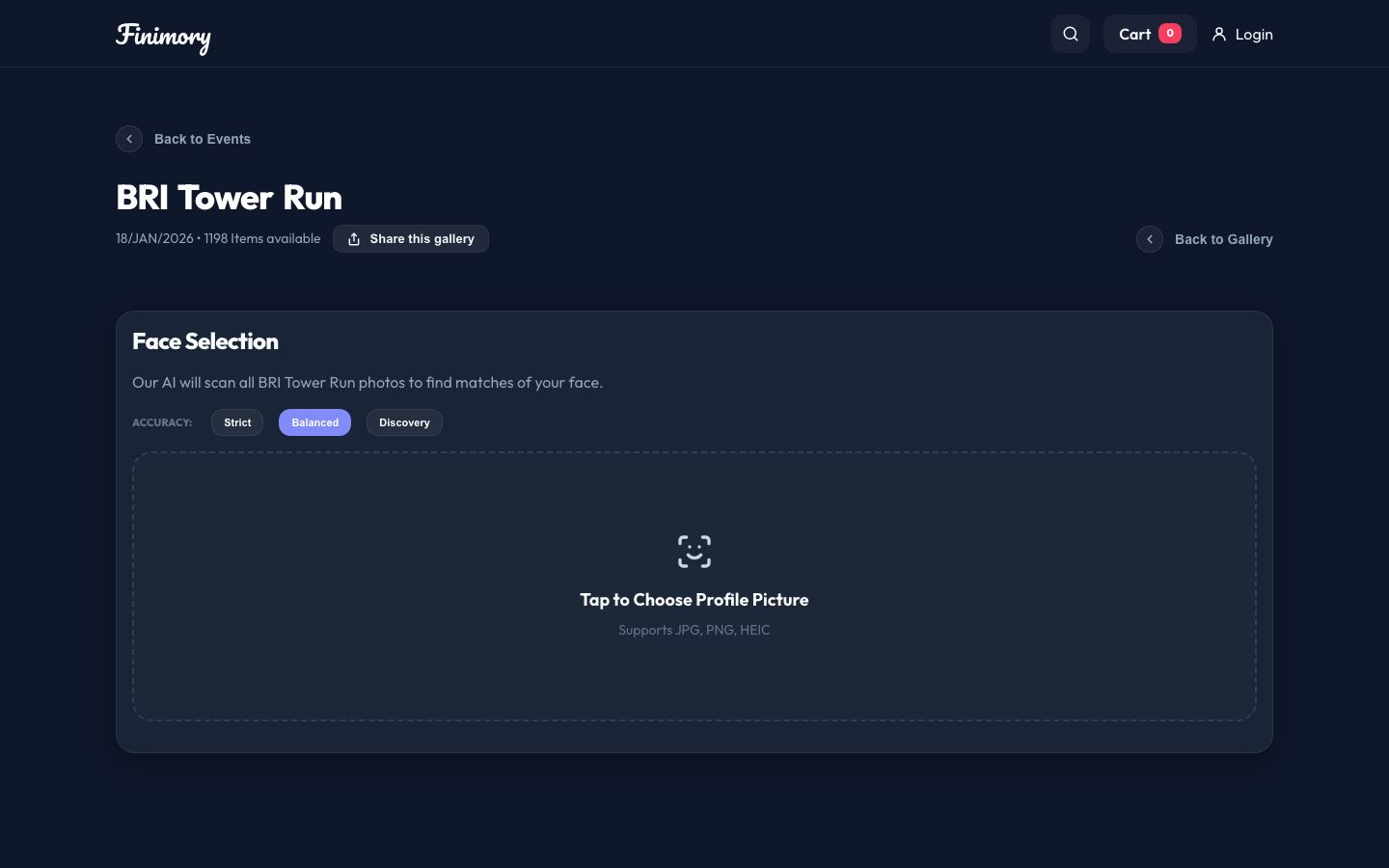
  3. 3Find your photos: BIB number, Face Search or FindMeEveryone
  4. 4Preview, then save free photos or add paid ones to the cartSigned in
  5. 5Pay with QRISSigned in
  6. 6Keep and download everything in MyAlbumSigned in
  7. 7Set your face once and let FindMe gather your photosSigned in
  8. 8Upload or import an event in the StudioPhotographers
  9. 9Manage the gallery and follow your earningsPhotographers

Who it's for

Three ways to use Finimory

What you can do depends on whether you are signed in, and whether you are a photographer.

Visitors

Browse any event gallery and search it by BIB number or with a photo, without an account.

Members

Signed in: a cart and checkout, MyAlbum, FindMe across every event, and notifications when new photos of you arrive.

Photographers

Approved members with a Studio: upload or import event galleries, set prices and bundles, and earn from every sale.

Step by step
Finding and collecting your photos

1. Sign in

Everyone
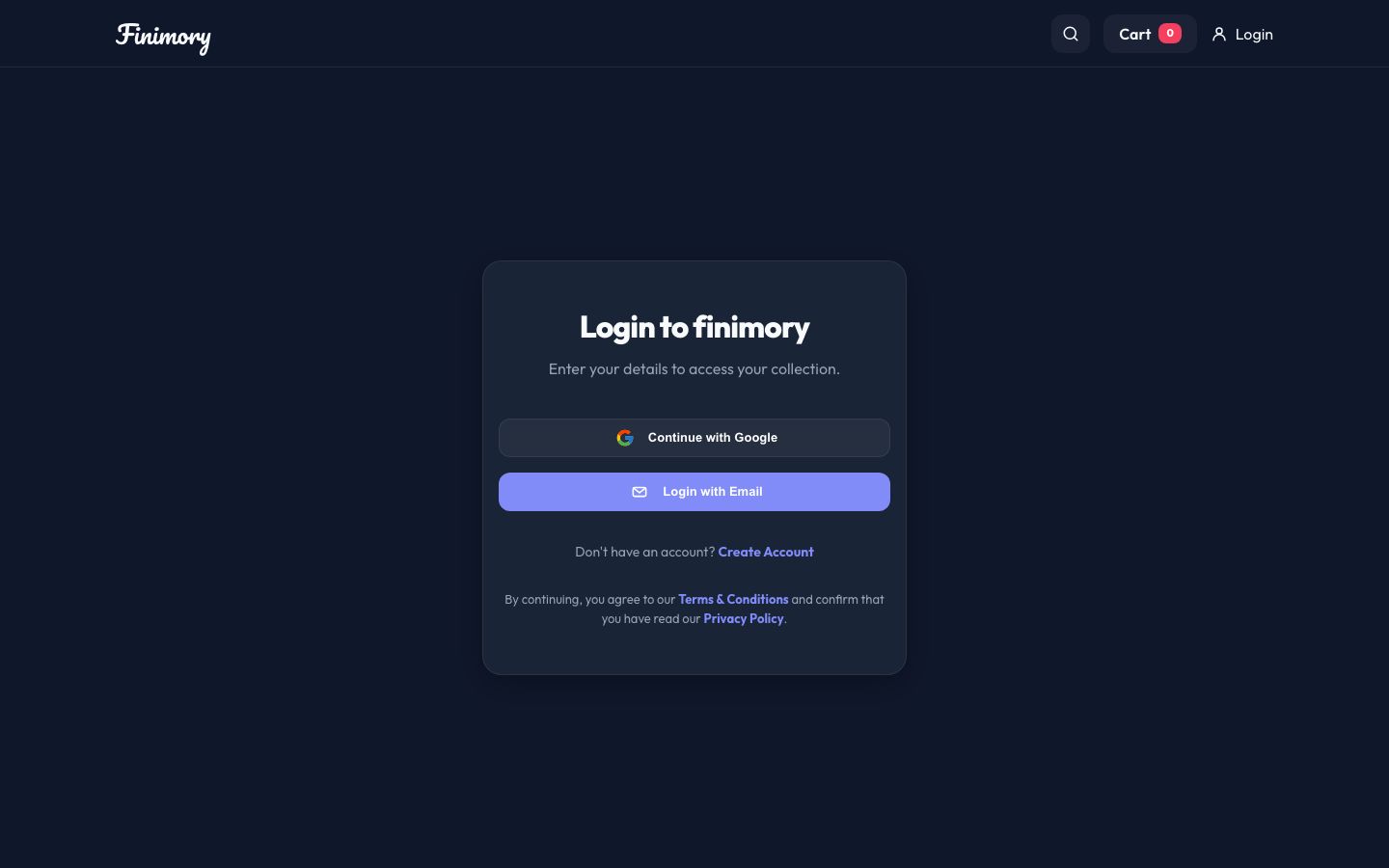
Open Login
  • Continue with Google, or log in with your email and password. New here? Create Account.
  • Google always asks which account to use, so you can pick a different Gmail than the one your browser remembers.
  • Browsing and searching a gallery need no account. The cart, MyAlbum and FindMe do.
Login: continue with Google, or sign in with your email.

2. Find an event

Everyone
Open Events
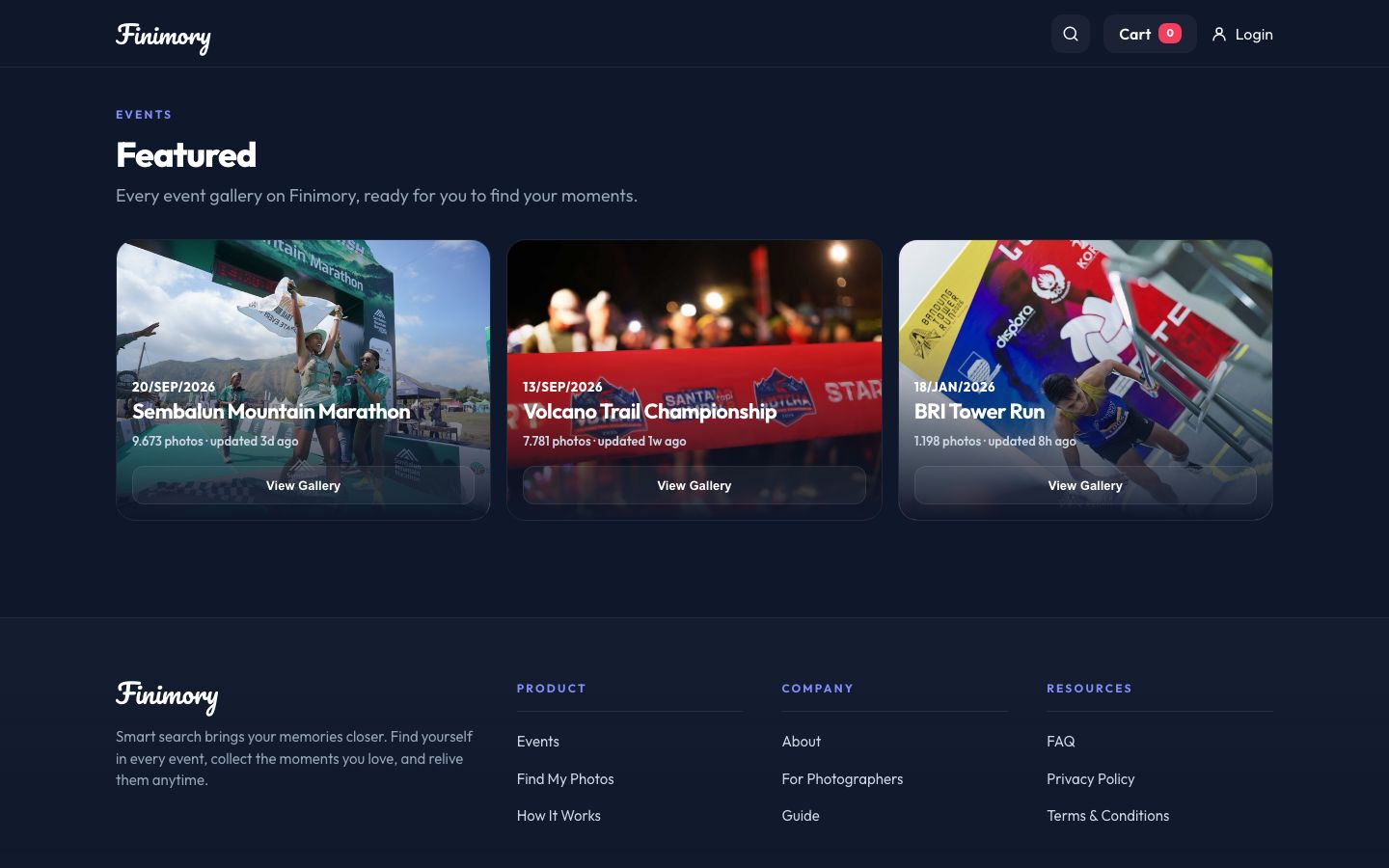
  • Events lists every gallery; the homepage shows the three latest.
  • Each card shows the event date, how many photos you can browse, and when photos were last added.
  • The search button in the top bar finds an event by name.
Events: every gallery with its date, number of photos and when it was last updated.

5. Preview and collect

Signed in
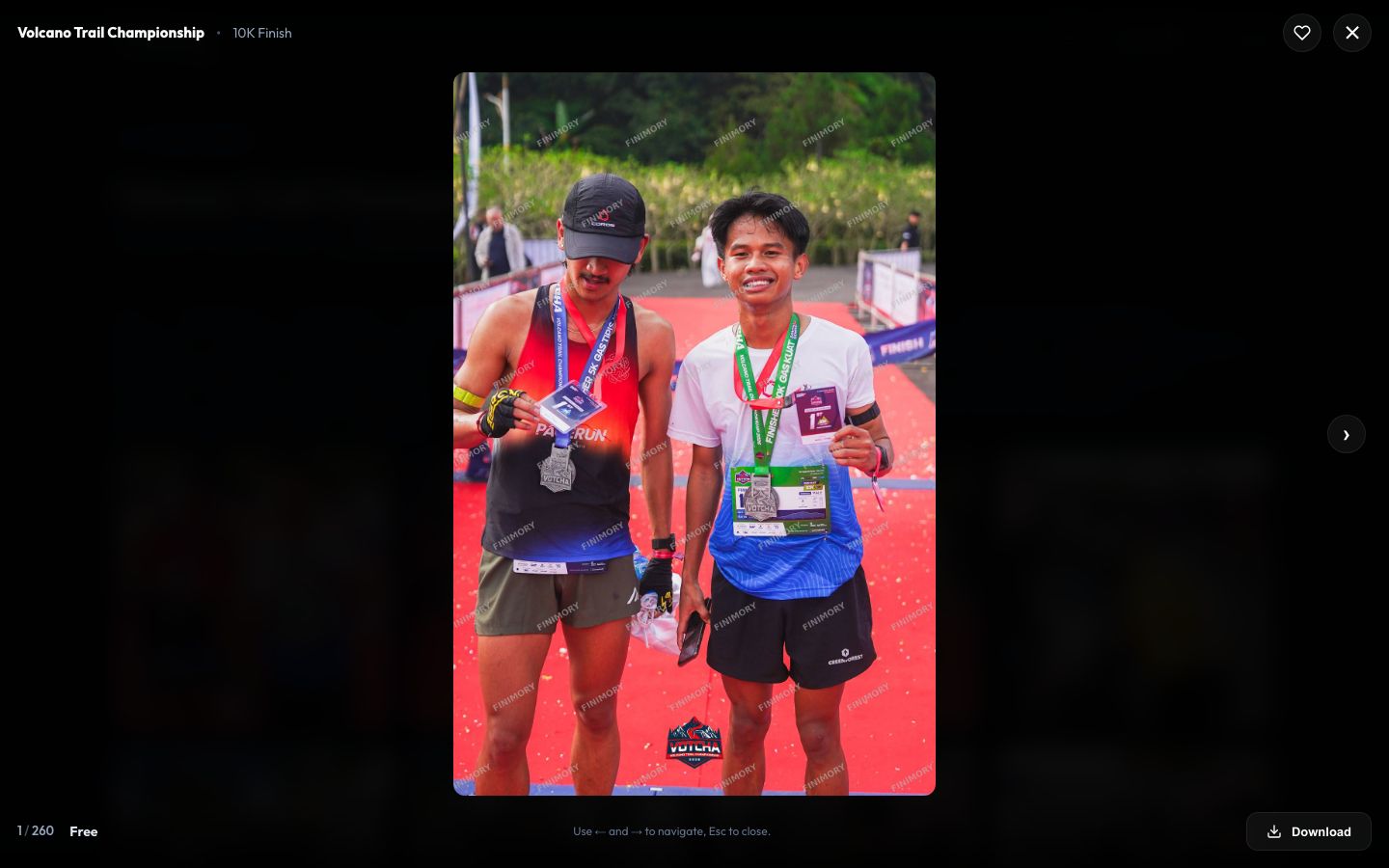
  • Click a photo to open it large. Use ← and → to go through the gallery, Esc to close.
  • Free photos: the heart saves the photo to MyAlbum, and Download saves it to your device.
  • Paid photos: Add to Cart. When the photographer offers a bundle, all of your unowned photos from that event come at one flat price.
  • In your gallery and MyAlbum, a heart marks free photos you have saved and a tag marks photos you have bought.
Preview: event and spot at the top, price at the bottom left, ← and → to move between photos.

6. Checkout with QRIS

Signed in
Open Cart
  • In the cart, enter a voucher code if you have one and press Apply. There is no processing fee: you pay the photos’ price, less any voucher.
  • Secure Checkout shows a QRIS code. Scan it with any banking or e-wallet app and pay the amount shown.
  • The QR code can be paid for one hour. If it expires, check out again for a new one: nothing is charged and your cart stays as it was.
  • Once the payment is confirmed the photos are in MyAlbum and a receipt arrives by email. Orders and their status are on your Profile.

7. MyAlbum

Signed in
Open MyAlbum
  • Everything you saved or bought, from every event, in one place, ready to download anytime.
  • “Select Photos” lets you pick several at once to remove them from the album.

8. Your face and FindMe

Signed in
Open FindMe
  • On your Profile, “Scan my face” takes a short scan with your camera, or “Upload a photo instead” uses one clear photo of you.
  • FindMe then gathers your photos from every event. In a gallery, the FindMe button shows only your photos there.
  • “That’s me” and “Not me” on a result teach FindMe: confirmed photos help it recognise you, and photos marked “Not me” are never suggested again (Undo on your Profile).
  • Email notifications: one summary a day at most when new photos of you are uploaded. Receipts and payment updates are always sent.
  • Your face is stored as numeric measurements, never shared with photographers, and deleted with “Delete face data” or your account.

Studio

For photographers

9. Become a photographer

Signed in
Open Profile
  • On your Profile, fill in your full name first, then apply in the Photographer Program card with a username and a link to your portfolio (an http or https address).
  • The username becomes your public gallery address: finimory.com/gallery/username.
  • An administrator reviews the application. You hear the answer in the bell and by email; a rejection comes with the reason.

10. Upload or import in the Studio

Photographers
Open Studio
  • Pick the event under Featured Event, then Choose Files (or drop them in the upload area).
  • Import from Google: a shared Google Photos album is linked, not copied; a Google Drive folder is copied into Finimory. Check link shows how many photos it holds.
  • Set the price, or Set as Free. Spot names where the photos were taken; leave it empty for no spot. Then Publish.
  • Indexing Status shows how many photos are ready, processing, queued or failed. A photo is searchable once it is ready.
  • Bundle Pricing sets one flat price for all of a buyer’s photos in the event.

11. Manage your gallery

Photographers
  • Manage Gallery on an event card opens every photo you published there, 60 per page.
  • Each photo has a code (e.g. #9991F2). Type a code to find that photo; buyers see the same code in their cart.
  • The pencil changes a photo’s price. Select Page (or single photos) then Delete Selected removes them.

12. Earnings, quota and your Street Gallery

Photographers
  • Available Balance is your share of each sale: 85% of what the buyer paid for your photo, after any voucher (15% platform fee). Withdraw sends it straight to the bank account saved in your Profile, less a Rp 2.775 transfer fee, with a code from Google Authenticator; Pending is recent sales, available in 1–2 working days.
  • Performance shows sales, free downloads and media per event. Upload Quota shows how many photos and videos you can still upload.
  • Your Street Gallery (finimory.com/gallery/username) is your public page: the events you covered and your own street photos and videos, searchable like any event.

Help

Questions

More answers are in the FAQ.

Open FAQ
Why does a search not find a photo I can see in the gallery?

Face Search and FindMe need a face that is visible and large enough; a face from behind, far away or blurred cannot be matched. Try the BIB number, or a different accuracy level. Photos still being processed become searchable once they are ready.

My QR code expired. Was I charged?

No. An expired code was never paid. Your cart is unchanged; press Secure Checkout again for a new code.

I paid but the order still says awaiting payment.

Contact us with the order number shown on your Profile, so we can check the payment.

Do I need an account to search?

No. Anyone can browse a gallery and search by BIB number or with a photo. An account is needed for the cart, MyAlbum and FindMe.

Who can see my face data?

Only you. It is stored as numeric measurements, never shared with photographers, and deleted when you press Delete face data or delete your account.

How do I become a photographer?

Fill in your full name on your Profile, then apply in the Photographer Program card with a username and your portfolio link. You hear the answer in the bell and by email.